
Step-by-Step Instructions for Online Special Events Applications
Parishes must apply for Special Events Insurance entirely online. This process, which began June 1, 2024, eliminates paperwork and requires only the corresponding payment to be mailed.
Please Note
- The procedure to process the Special Events Application (SEA) uses a third-party online platform called Foxit.
- You will need the following information from the event host before you begin filling out the SEA:
- Name
- Email Address
- Phone Number
- Mailing Address
- Please inform the event host that they will receive an email with a link asking them to electronically sign the SEA. Until they have done so, the MCC will not receive nor be able to approve the application since Special Events is a contract between the host and parish and must be signed.
- All payments must originate from the parish and be sent to:
Michigan Catholic Conference
PO Box 670986
Detroit, MI 48267-0986 - The parish check must include the name of the event host on the memo line in order to be processed by the MCC.
- Once the MCC approves the SEA, all parties (Host, Parish, and MCC) will receive an email with the completed form; this will be proof of coverage for the event.
Step-by-Step Instructions
- Follow the link to the Special Events Insurance Application.
- Fill out all required fields, then click or tap “Submit Application” to finish. The Special Events Insurance Application will then self-populate as shown here:
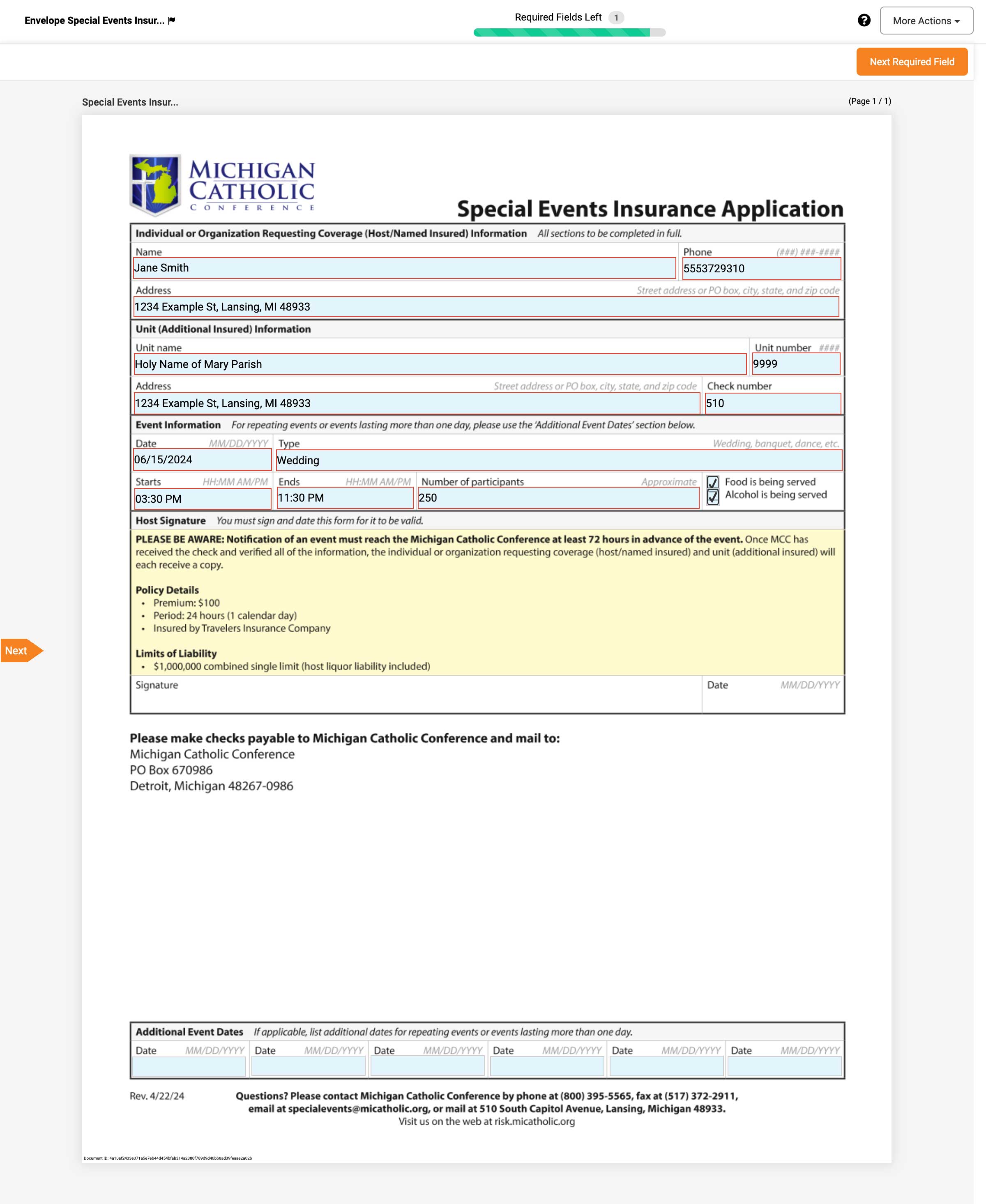
- Click or tap “Next Required Field” followed by “Finish” in the upper-right-hand corner of the screen:


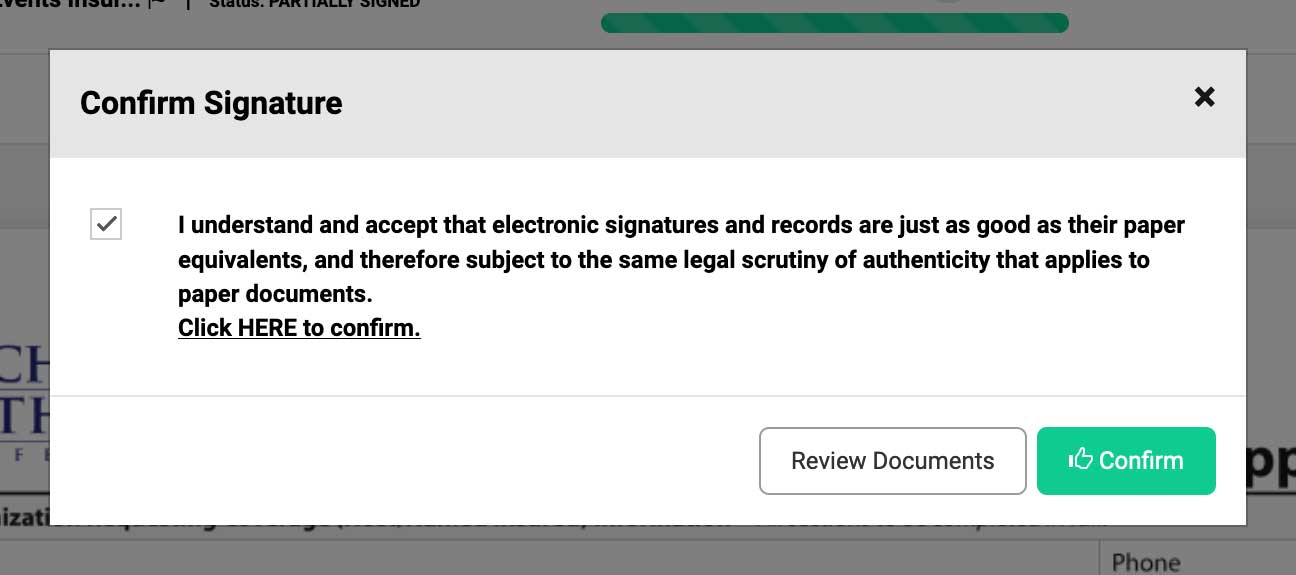
- Check the box to confirm your signature, then click or tap “Confirm”. If you haven’t done so already, inform the host that they will be receiving an email shortly and they will need to follow the included instructions to electronically sign the form.
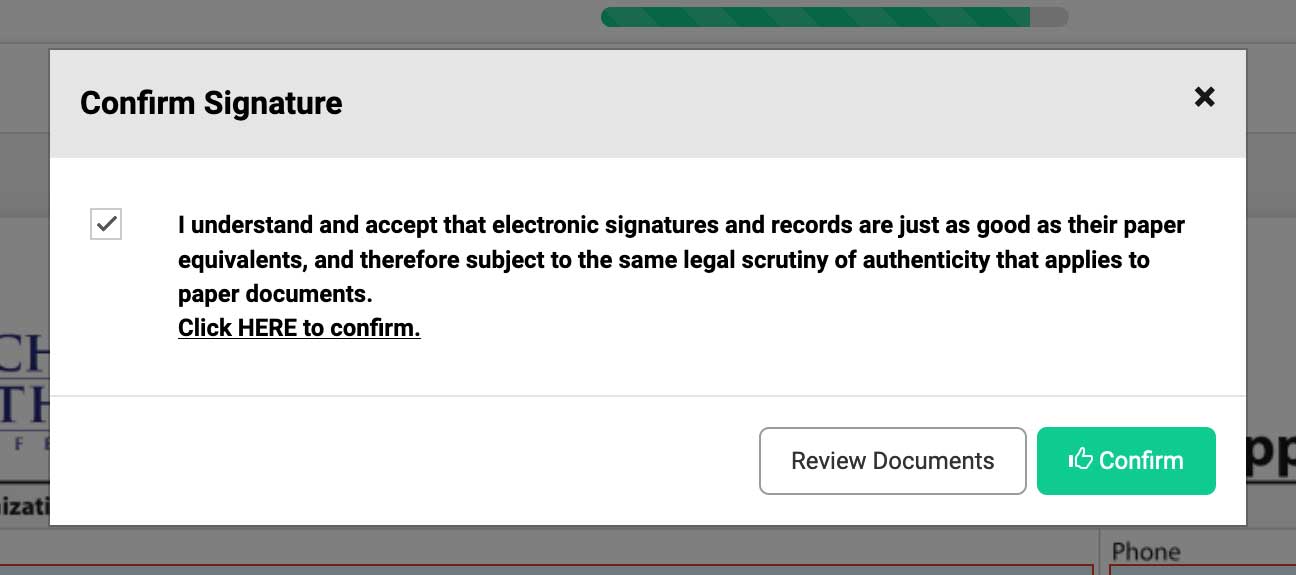
- Send a parish-issued check to the MCC lockbox making sure that the check number matches what was entered on the form and that the event host’s name is included in the memo field. Remember, send all parish-issued checks to the following address:
Michigan Catholic Conference
PO Box 670986
Detroit, MI 48267-0986 - Shortly after you click or tap “Confirm,” the event host will receive an email from “Michigan Catholic Conference via Foxit eSign” with a subject line of “Please review or esign the document(s) Special Events Insurance Application”:
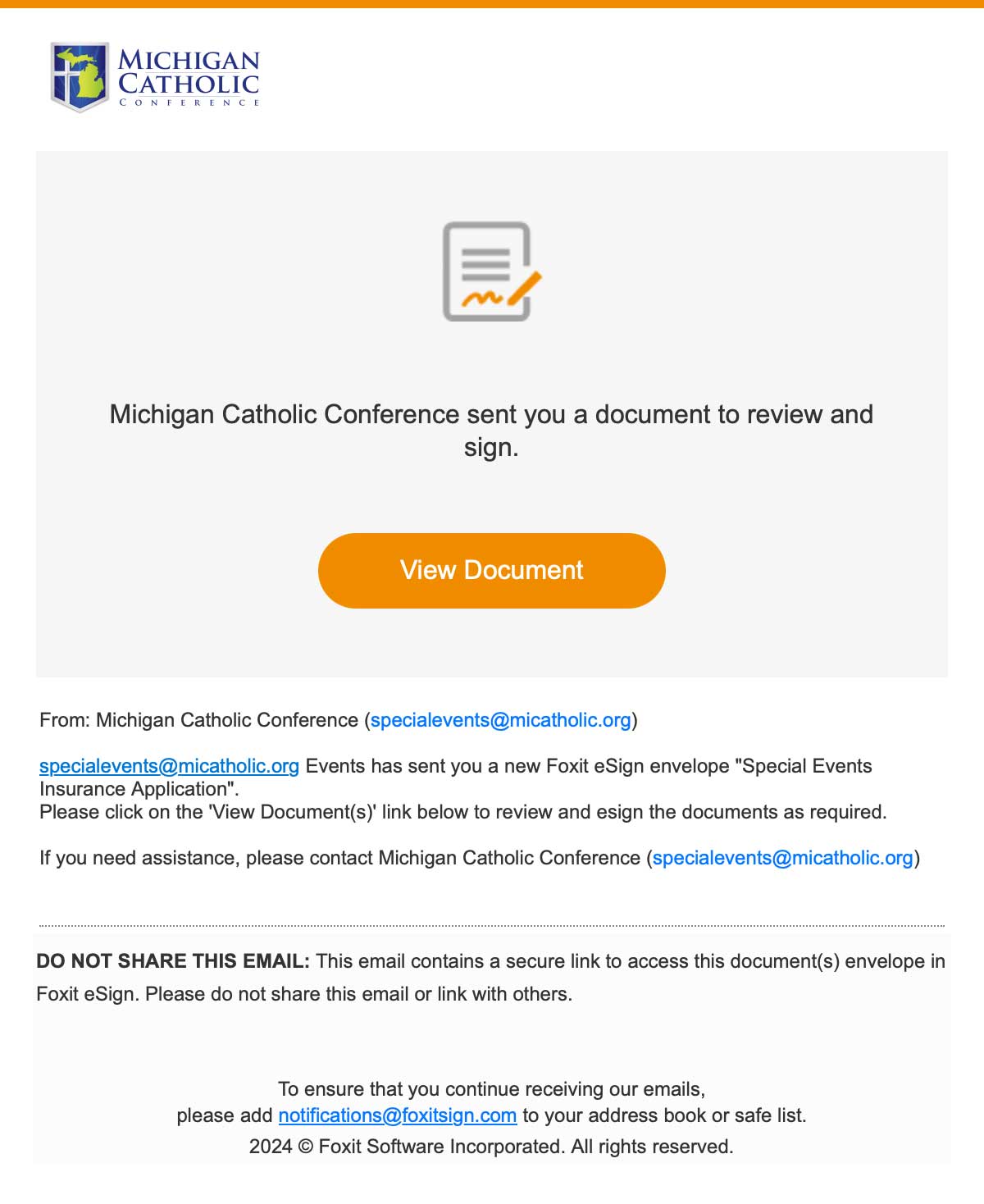
- Once the host clicks or taps “View Document,” Foxit will open and they will then have to click or tap “Accept” to begin:
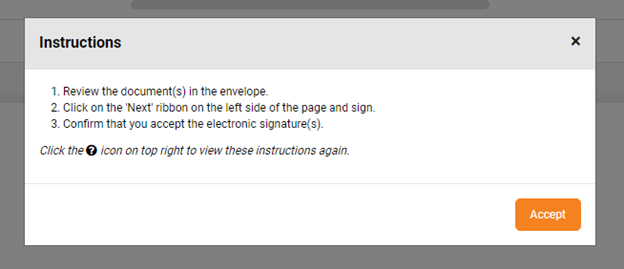
- They will then be prompted to sign:
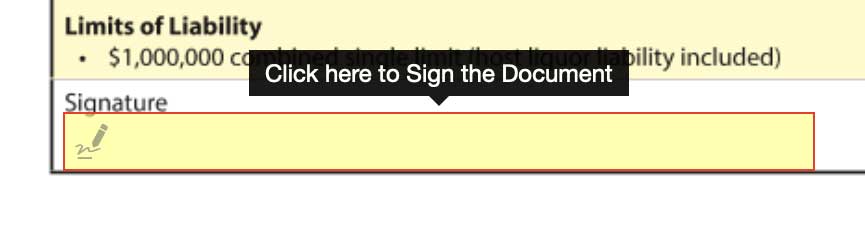
- Clicking or tapping on the “Signature” field will prompt the event host to accept the suggested signature, draw their own, or upload a scanned signature:
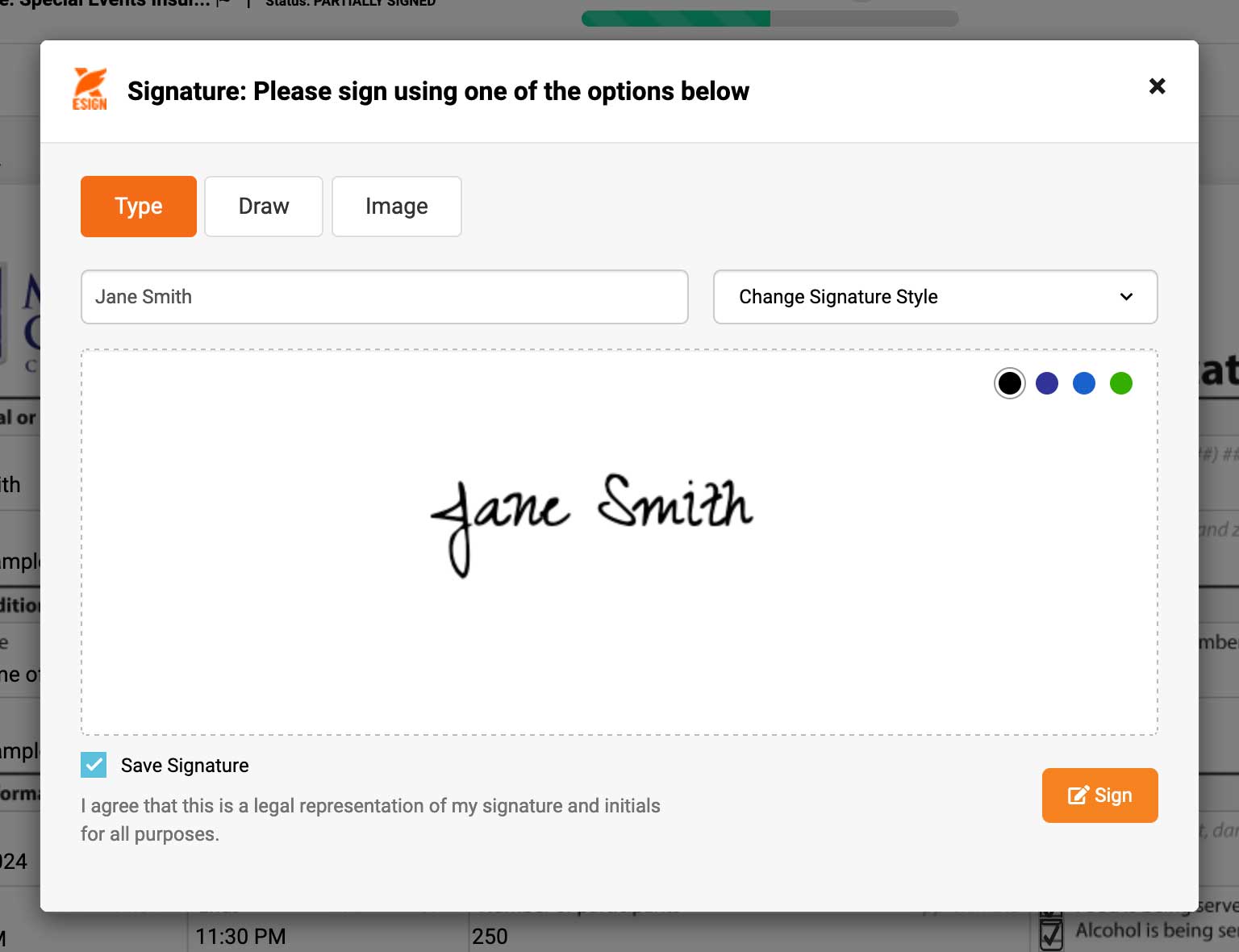
- They can also change their name if necessary.
- After signing, the event host must click or tap “Finish” in the upper-right-hand corner of the screen:

- Once they do so, they will be prompted to confirm their signature by checking a box and clicking “Confirm”. They will receive a copy of the completed form once the MCC has approved it, so saving it at this step is unnecessary.
- After MCC receives the parish check, validates the information, and approves the application, both the parish representative and the event host will receive the completed application via an email from “Michigan Catholic Conference via Foxit eSign” with a subject line of “Special Events Insurance Application Completed for [Name]”.
- The process is completed and the event is insured once the host and parish receive the email with the completed form.
Please note: if the email address contains misspellings or typos a notfication may be displayed indicating the email address is invalid.